

An AI image optimizer for small business websites is the fastest, cheapest speed win most small business owners never try. Your homepage photos look beautiful — and they are also the reason your site takes four seconds to load, your mobile visitors leave, and Google ranks you below faster competitors. Modern AI tools compress, resize, and convert your images automatically, often cutting file sizes by 60–80% with no visible loss in quality.
In this guide, you will learn what an AI image optimizer for small business sites does, which seven tools are worth your money in 2026, what they cost, and how to set one up in a single afternoon — with a real worked example showing a 54% load-time cut.
Table of Contents
- Why Image Size Is Slowing Your Small Business Website
- What Is an AI Image Optimizer for Small Business?
- How an AI Image Optimizer for Small Business Works
- 7 Best AI Image Optimizer for Small Business Tools in 2026
- AI Image Optimizer for Small Business Pricing Compared
- 5-Step Setup Walkthrough: From 4.2 MB to 780 KB in One Afternoon
- Worked Example: Juniper & Oak Interiors Cut Load Time by 54%
- 5 Mistakes That Undo Your Image Optimization
- Frequently Asked Questions
- Key Takeaways
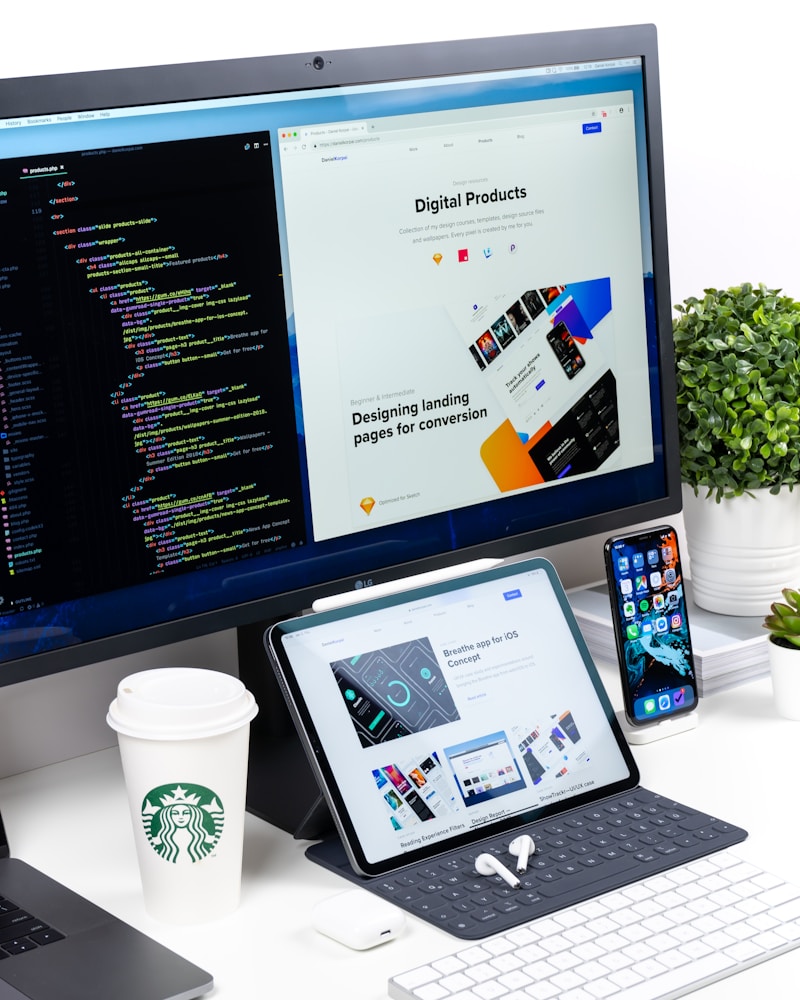
Heavy, unoptimized images are the single biggest cause of slow small business websites — and the easiest problem to fix with AI.
📉 Why Image Size Is Slowing Your Small Business Website
Images typically account for around half of the total weight of an average web page. A single unoptimized hero photo from a modern phone can weigh 4–6 MB — put five on a homepage and a mobile visitor downloads 25 MB before seeing your phone number. Google research has long shown that more than half of mobile visits are abandoned when a page takes longer than three seconds to load, and every extra second costs conversions.
For a small business, the damage is quiet but expensive. Slow pages rank lower because page experience is a ranking factor, and Core Web Vitals — Google’s speed measurements, led by Largest Contentful Paint (LCP) — are heavily influenced by image weight. A slow site also converts worse: visitors who wait do not enquire, book, or buy. The good news is that images are the easiest speed problem to solve, and an AI image optimizer for small business owners automates the whole job.
- Images are ~50% of average page weight, according to HTTP Archive data — more than scripts, fonts, and stylesheets combined.
- 53% of mobile visits are abandoned if a page takes over three seconds to load (Google research).
- LCP measures how fast your largest element loads — on most small business sites, that element is an image.
- Every 100 KB saved is speed your visitors can feel, especially on mobile networks.
What Is an AI Image Optimizer for Small Business?
An AI image optimizer for small business websites is a tool that uses machine learning to shrink image files automatically while keeping them looking sharp. Unlike old-fashioned compression, which applies the same blunt settings to every picture, AI analyzes each image’s content — faces, text, textures, gradients — and chooses the smartest way to compress it. A product photo with fine fabric detail gets gentle treatment; a flat-coloured banner gets aggressive compression.
Most tools work in one of three ways. WordPress plugins optimize images as you upload them and can bulk-compress your existing media library in one click. Standalone web apps let you drag, drop, and download optimized files for any platform. API-based tools plug into your website builder or store so every image is optimized the moment it goes live.
If you are building or rebuilding your site at the same time, pair image optimization with the right platform — our guide to AI website builders for small business shows which builders handle image optimization natively. And for the full picture on speed, see our guide on how to speed up your small business website with AI.
How an AI Image Optimizer for Small Business Works
Understanding the techniques inside these tools helps you pick the right settings and avoid quality disasters. Here is what happens when an image passes through an AI image optimizer for small business use:
1. Smart lossy compression
The AI removes data the human eye cannot easily see — subtle colour variations in a sky, noise in a shadow — while protecting edges, faces, and text. Savings of 60–80% are normal, and the difference is invisible at normal viewing sizes.
2. Next-gen format conversion
Converting JPEG and PNG files to WebP or AVIF typically cuts another 25–35% off file size at the same quality. Modern tools convert automatically and serve the original format only to the rare browser that cannot display WebP.
3. Responsive resizing and lazy loading
Smart tools generate multiple sizes of each image and serve the right one for each screen — no more sending a 2400-pixel banner to a 375-pixel phone. Combined with lazy loading, which defers off-screen images until the visitor scrolls to them, this can halve initial page weight.
🛠️ 7 Best AI Image Optimizer for Small Business Tools in 2026
We compared the tools small business owners actually use — weighing WordPress integration, ease of setup, free allowances, and real compression results. Here are the seven best options for 2026.
1. ShortPixel — Best all-rounder for WordPress
ShortPixel offers lossy, glossy, and lossless modes plus automatic WebP and AVIF conversion. Its WordPress plugin bulk-optimizes your whole media library and optimizes new uploads silently in the background. The free plan covers 100 images a month; paid plans start at a few dollars monthly. If you want one tool that simply works, start here.
2. Imagify — Best for beginners
Built by the WP Rocket team, Imagify is the friendliest AI image optimizer for small business owners who never want to see a settings screen. Three compression levels, one-click bulk optimization, and automatic WebP conversion make it set-and-forget. The free tier covers about 200 MB a month.
3. TinyPNG (Tinify) — Best free web tool
TinyPNG’s smart lossy compression remains the benchmark for quick one-off jobs: drag up to 20 images onto the site, download them up to 80% smaller, done. Its WordPress plugin and API bring the same engine into automated workflows. Free for up to 500 images a month through the API.
4. Optimole — Best for image-heavy sites
Optimole serves your images from a cloud CDN, resizing and optimizing them in real time for each visitor’s device and connection. That makes it ideal for photography, portfolio, and ecommerce sites with hundreds of images. Lazy loading and automatic scaling are built in, and the free plan covers 5,000 monthly visits.
5. EWWW Image Optimizer — Best for privacy-conscious owners
EWWW can compress images locally on your own server, so your files never leave your hosting — a plus for businesses handling sensitive client photos. It also offers cloud optimization for heavier jobs, WebP conversion, and lazy loading. The free plugin is genuinely useful.
6. Kraken.io — Best for agencies and teams
Kraken.io combines a polished web interface, a WordPress plugin, and a robust API with detailed compression reports. Its intelligent lossy mode is consistently among the best at preserving detail. Pricing starts higher than hobbyist tools, but the reporting suits businesses managing several client sites.
7. Squoosh — Best free tool for one-off batches
Google’s free Squoosh app runs entirely in your browser: drop an image in, compare original versus compressed side by side, tweak the settings, and download. There is no account, no upload to a server, and no cost. It is not automated — but for a one-off batch of hero images, it is unbeatable value. For a deeper dive into Google’s speed guidance, see the official Core Web Vitals documentation.
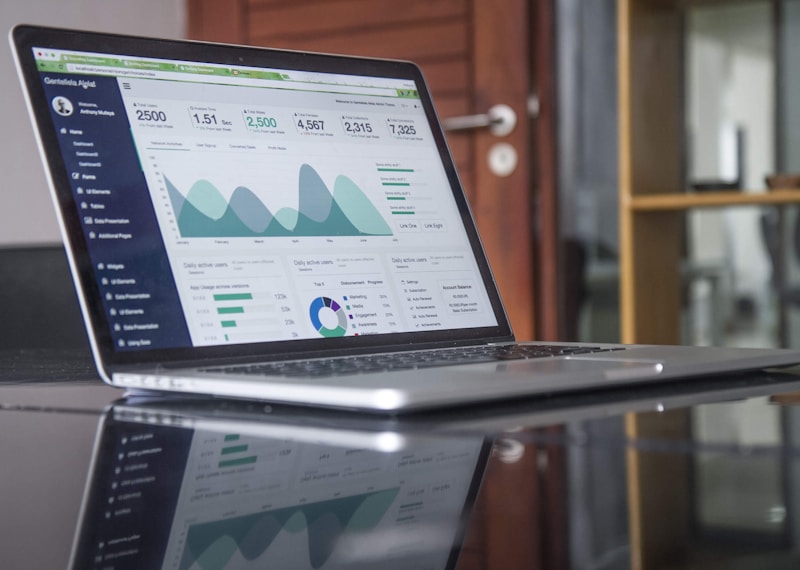
Measure before and after: a good optimizer should cut your image weight by 60–80% and your load time by a second or more.
AI Image Optimizer for Small Business Pricing Compared
Price matters when every dollar counts. This table compares the seven tools at a glance so you can match a tool to your budget and your image volume.
| Tool | Free plan | Paid plans from | Best for | WordPress plugin |
|---|---|---|---|---|
| ShortPixel | 100 images/month | ~$4/month | All-round WordPress use | Yes |
| Imagify | ~200 MB/month | ~$5/month | Beginners | Yes |
| TinyPNG | 500 images/month (API) | ~$25/year | Quick one-off jobs | Yes |
| Optimole | 5,000 visits/month | ~$19/month | Image-heavy sites | Yes |
| EWWW | Unlimited local compression | ~$7/month (cloud) | Privacy-first sites | Yes |
| Kraken.io | 100 MB trial | ~$9/month | Agencies, teams | Yes |
| Squoosh | Free, unlimited | Free | One-off batches | No |
Budget rule of thumb: if your site has under 200 images, a free plan is usually enough. Between 200 and 1,000 images, expect $4–$10 a month. Above that — or if you run an online store — a CDN-based tool like Optimole earns its higher price in speed and saved hosting bandwidth. When you are weighing any AI tool purchase, the step-by-step AI tutorials at AIToolSteps walk through setup and pricing for popular business tools, which makes comparing options far less confusing.
5-Step Setup Walkthrough: From 4.2 MB to 780 KB in One Afternoon
Theory is nice; here is the exact process. Block out one afternoon, follow these five steps, and your site will be measurably faster by dinner.
Step 1: Measure your starting point (20 minutes)
Run your homepage through Google PageSpeed Insights and note three numbers: the LCP time, the total page weight, and the image warnings. Screenshot the results — you will want the before-and-after. Most small business homepages score 40–60 on mobile at this stage.
Step 2: Back up your media library (15 minutes)
Before bulk-optimizing anything, back up your site — or at minimum, your uploads folder. Every reputable optimizer keeps originals restorable, but a backup is free insurance.
Step 3: Install and configure your optimizer (30 minutes)
Install ShortPixel or Imagify from the WordPress plugin directory. Choose lossy (or “Aggressive”) compression for photos, enable WebP/AVIF conversion, turn on lazy loading, and set it to optimize new uploads automatically. Keep the “keep originals” option on for the first month so you can revert anything you dislike.
Step 4: Bulk-optimize the library (30–60 minutes)
Run the bulk optimizer on your media library. A library of 300 images typically takes under an hour on a standard host. Do not skip this step: old images are usually the heaviest files on the site.
Step 5: Re-test and fix what is left (30 minutes)
Re-run PageSpeed Insights. Your LCP should have dropped by a second or more, and the image warnings should be gone or greatly reduced. If any image is still flagged, it is usually a logo or background image the plugin skipped — compress it manually with Squoosh and re-upload it.
Worked Example: Juniper & Oak Interiors Cut Load Time by 54%
Juniper & Oak Interiors is a fictional-but-typical two-person interior design studio with a WordPress site built around photography: a 12-image portfolio, a hero slider, and project galleries. Their homepage weighed 6.8 MB, loaded in 4.1 seconds on mobile, and scored 47 on PageSpeed Insights. Their hero image alone weighed 4.2 MB because it had been uploaded straight from a camera at full resolution.
Following the five steps above, they installed ShortPixel with lossy compression and WebP conversion, then bulk-optimized 214 images. The hero image dropped from 4.2 MB to 780 KB, total homepage weight fell from 6.8 MB to 2.4 MB, and mobile load time dropped from 4.1 seconds to 1.9 seconds — a 54% improvement — while the PageSpeed mobile score rose from 47 to 82. The whole job took one afternoon and cost nothing on the free plan. Contact-form submissions from mobile visitors rose 31% over the following month. Image optimization is not a technical chore; it is a conversion project wearing a technical disguise.
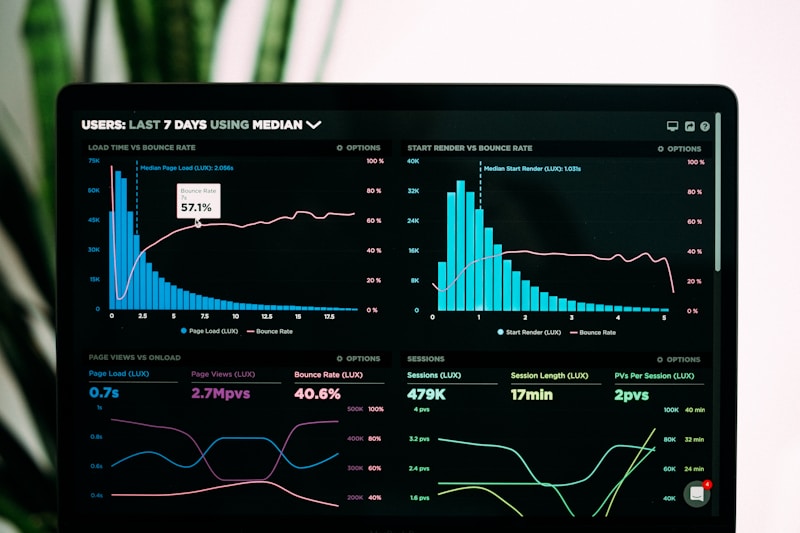
Track the win: re-test PageSpeed Insights after optimization and record the before-and-after scores.
⚠️ 5 Mistakes That Undo Your Image Optimization
Even with the best AI image optimizer for small business sites, these five mistakes can quietly undo your gains:
- Uploading full-resolution camera files. Resize to your largest display size (usually 1600–2000 px wide) before uploading; no website needs a 6000-pixel image.
- Using PNG for photographs. PNG is for logos and graphics with transparency. Photos should be JPEG, WebP, or AVIF — a photo saved as PNG can be five times heavier.
- Skipping alt text. Alt text helps accessibility and SEO, and it is where your keyword belongs on every image.
- Disabling WebP conversion. This one setting is worth 25–35% on its own. Leave it on unless you have a specific compatibility reason not to.
- Optimizing once and never again. New uploads pile up fast. Keep “optimize on upload” switched on and re-run a bulk pass every quarter.
For the bigger picture on AI-powered site improvements, our pillar guide to AI tools for small business covers the full toolkit — from chatbots to bookkeeping — that small teams are using to compete with bigger rivals in 2026.
Frequently Asked Questions
Will an AI image optimizer for small business use reduce my image quality?
Not visibly. Modern AI compression removes data your eyes cannot detect, and in blind tests most people cannot tell an 80%-compressed image from the original. Use lossy mode for photos and lossless mode for logos and text-heavy graphics, and keep your originals for the first month.
How much faster will my website actually get?
Most small business sites see load times fall by 30–60% after full optimization, with mobile improving most. In our worked example, load time dropped 54% and the PageSpeed score rose from 47 to 82. The heavier your images are today, the bigger the win.
Is a free AI image optimizer enough for a small business?
Yes, for most sites. Free plans from ShortPixel, Imagify, and TinyPNG cover 100–500 images a month, which handles a typical small business site and its regular uploads. Upgrade only when your image volume grows or you need CDN delivery for an image-heavy store or portfolio.
Can an AI image optimizer help my Google rankings?
Indirectly, yes. Faster pages improve Core Web Vitals scores, which are a confirmed ranking factor, and faster sites keep visitors on the page longer. Image optimization alone will not rank a bad page, but it removes a speed penalty that holds good content back.
Key Takeaways
- Images are half your page weight — and the easiest speed problem to fix.
- An AI image optimizer for small business sites cuts file sizes 60–80% with no visible quality loss, using smart compression, WebP/AVIF conversion, and responsive sizing.
- Start free: ShortPixel, Imagify, or TinyPNG cover most small sites at $0.
- Follow the 5-step walkthrough — measure, back up, configure, bulk-optimize, re-test — and expect a 30–60% load-time cut.
- Keep it automatic: optimize-on-upload plus a quarterly bulk pass keeps the win permanent.
A fast website is not a luxury for small businesses in 2026 — it is the price of admission. An AI image optimizer for small business owners delivers one of the largest speed improvements available for the least effort and the lowest cost. Pick a tool from the list above, run the five-step setup this week, and measure the difference. Your visitors — and Google — will notice.
Sources: Google PageSpeed Insights and Core Web Vitals documentation (web.dev); HTTP Archive page-weight data; Google research on mobile page load and abandonment. Tool pricing and free-plan limits as listed on vendor sites in November 2026; verify current pricing before purchase.