
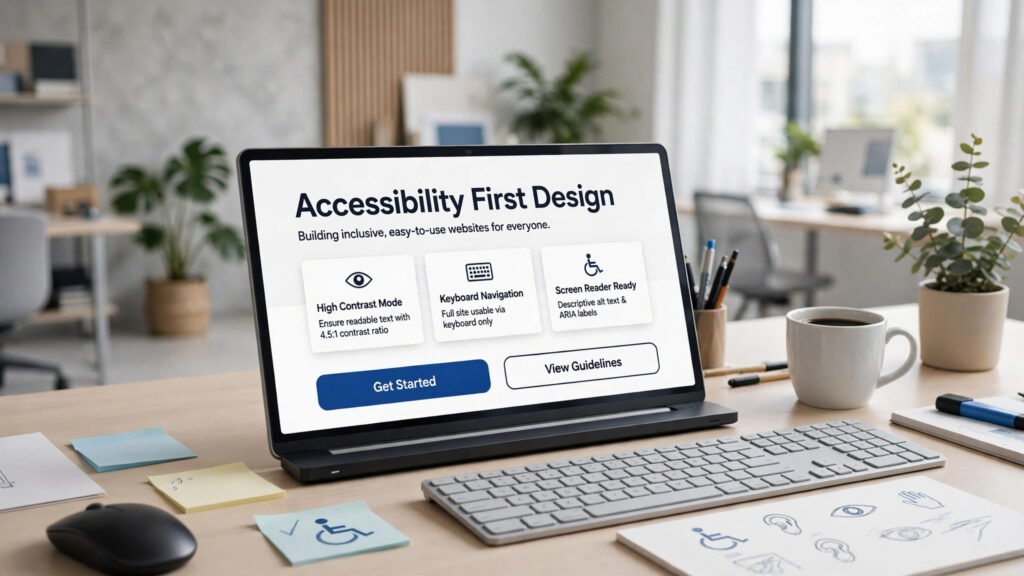
A website accessibility checklist is one of the highest-value tools in modern web development. It catches the small barriers that stop real people from reading your content, buying your products, or contacting your team: text too light to read, a button unreachable by keyboard, an image with no description, or a form that gives no useful error message. This website accessibility checklist gives you nine WCAG-based fixes, ordered by impact, so you can start with the changes that help the most visitors first.
The audience is larger than many site owners realise. The World Health Organization estimates that about 1.3 billion people — roughly 16% of the world’s population — live with a significant disability, and many more face temporary barriers. When your site works for screen readers, keyboards, and magnification, it works better for everyone. That is why accessibility, usability, and conversion so often improve together, and why every website accessibility checklist deserves a place in your launch process.

Key Takeaways
- Start with the big three: readable contrast, full keyboard access, and meaningful alt text.
- WCAG 2.2 Level AA is the practical target for any website accessibility checklist in 2026.
- Automated tools catch only part of the problem: add keyboard and screen-reader testing.
- Accessibility protects revenue: clearer navigation and better forms convert more visitors.
- Document your work: an accessibility statement turns a project into an ongoing practice.
Table of Contents
- Why a Website Accessibility Checklist Matters in 2026
- Website Accessibility Checklist: How to Use the 9 Fixes
- Fixes 1–3: Text, Contrast and Keyboard Access
- Fixes 4–6: Images, Forms and Navigation
- Fixes 7–9: Video, Motion and Testing
- Website Accessibility Checklist Tools Compared
- Website Accessibility Checklist for WordPress Sites
- Common Accessibility Mistakes That Cost Conversions
- Your 30-Day Accessibility Action Plan
- Frequently Asked Questions
1. Why a Website Accessibility Checklist Matters in 2026
Accessibility has moved to the centre of web development for three reasons: law, market, and search. In the United States, the Americans with Disabilities Act continues to drive website accessibility lawsuits, and the Department of Justice’s 2024 rule set WCAG 2.1 Level AA as the standard for state and local government sites. In the European Union, the European Accessibility Act, applying from June 2025, extends duties to many digital products and services. Even outside those regimes, enterprise customers and international visitors increasingly expect WCAG-conformant sites — and a website accessibility checklist is how you prove you meet that expectation.
WebAIM’s Million project, auditing the top one million home pages, found an average of 51 errors per home page in 2025, with low-contrast text the most common problem. A site that is genuinely easy to read and navigate stands out immediately. Search engines reward the same qualities: clean heading structure, descriptive links, and meaningful image descriptions help both users and crawlers, as our guides to responsive web design and Core Web Vitals optimization show from the performance side.
2. Website Accessibility Checklist: How to Use the 9 Fixes
Use this website accessibility checklist in order. Fixes 1–3 remove the barriers affecting the most visitors on the most pages. Fixes 4–6 clean up images, forms, and navigation, where transactions actually happen. Fixes 7–9 cover media, motion, and the testing routine that keeps your site accessible after launch. Apply the website accessibility checklist to your five most important pages first — home, top service or product page, pricing, contact, and checkout or lead form.
3. Fixes 1–3: Text, Contrast and Keyboard Access
Fix 1 — Colour contrast: make text readable. Low-contrast text is the web’s most common accessibility failure and one of the easiest to fix. This website accessibility checklist uses WCAG Level AA, which requires a contrast ratio of at least 4.5:1 for normal text and 3:1 for large text. Light grey body text on white, coloured text on a coloured button, and faint placeholder text are the usual offenders. Check every combination with a contrast checker, and never use colour alone to convey meaning — pair it with an icon or a word, so a “red = error” message also says “error” in text.
Fix 2 — Full keyboard access: every action must work without a mouse. Many people navigate by keyboard, switch device, or voice control, and keyboard access is the foundation screen readers build on. Unplug your mouse and try your site: you should reach every link, button, menu, and form field with Tab, always see a clear focus indicator, and never get trapped inside a modal, menu, or carousel. Dropdown menus, date pickers, sliders, and cookie banners are where keyboard support most often breaks — fix those before adding any new feature.
Fix 3 — Scalable, structured text: let users read at their size. Users must be able to zoom to 200% without losing content, and text should reflow rather than force horizontal scrolling. Use real headings in logical order — one H1, then descriptive H2s and H3s — instead of styling paragraphs to look like headings, because screen-reader users navigate by headings the way sighted users scan a page.
4. Fixes 4–6: Images, Forms and Navigation
Fix 4 — Meaningful alt text: describe images that carry meaning. Every informative image needs alternative text conveying what a sighted visitor learns from it: a product photo needs its key details, a chart needs its conclusion, and a decorative image should carry an empty alt attribute so screen readers skip it. Avoid “image” or a filename as alt text. AI tools can draft alt text at scale, and step-by-step AI tutorials are a useful starting point — but always have a human review it, because AI can miss a detail that matters, such as a price or a warning.
Fix 5 — Forms that explain themselves: labels, errors, and instructions. Forms are where accessibility failures cost money most directly, because a form that cannot be completed is a lost lead or sale. Every input needs a visible, programmatically associated label — not placeholder text alone, which disappears on typing and often fails contrast checks. Mark required fields clearly, and give errors that name the field and explain the fix (“Enter a valid email address, for example name@example.com”) rather than “invalid input”. Test the whole flow, including captchas and payment steps, with a keyboard alone.
Fix 6 — Consistent, predictable navigation: don’t make users re-learn your site. Keep navigation in the same place and order on every page, use descriptive link text (“Download the 2026 pricing guide”, not “click here”), and make page titles, headings, and breadcrumbs show users where they are. Offer more than one way to find content — search, sitemap, or a clear menu — and add a “Skip to main content” link, which saves keyboard users from tabbing through a whole menu on every page. This part of the website accessibility checklist is also a quick litmus test: no skip link usually means keyboard navigation was never tested.
5. Fixes 7–9: Video, Motion and Testing
Fix 7 — Accessible media: captions, transcripts, and audio description. Every video needs accurate captions — not unchecked auto-captions — plus a transcript for users who cannot hear or play audio. If visuals carry information absent from the dialogue, add audio description or a written summary, and publish full transcripts for audio-only content. Captions also help viewers on mute and non-native speakers.
Fix 8 — Motion and flashing: respect user preferences. Auto-playing carousels and animated backgrounds can cause nausea or seizures for some visitors and distract everyone else. Never include content flashing more than three times per second, give users a pause or stop control for moving content, and honour the operating system’s reduced-motion preference. If an animation does not help the user understand or complete something, remove it.
Fix 9 — Test with people and tools, not tools alone. Automated checkers in a website accessibility checklist find contrast errors, missing alt attributes, and broken labels, but typically detect only about a third of real WCAG issues. A complete website accessibility checklist routine combines three passes: an automated scan of every template, a keyboard-only walkthrough of every key flow, and a screen-reader pass over your top pages. If budget allows, add testing with disabled users — nothing replaces it. Re-run the routine on every major release, because one new component or plugin can quietly undo a year’s work.
6. Website Accessibility Checklist Tools Compared
WAVE (from WebAIM) is the best starting point: a free browser extension visualising errors and structure directly on the page. Axe DevTools is the developer favourite — fast, precise, and built for test suites, with clear guidance on each rule. For ongoing monitoring, a platform that scans your whole site on a schedule is genuinely useful; an overlay widget promising to “make your site accessible” is not a substitute for fixing code. Spend the budget on the fixes, not the widget.
7. Website Accessibility Checklist for WordPress Sites
WordPress can be an accessibility asset or a liability depending on theme and plugin choices. Start with an accessibility-ready theme and test its demo with a keyboard before committing — a beautiful theme with broken navigation costs more than a plainer theme that works. Keep plugin counts low: contact forms, sliders, and page builders are the most common sources of inaccessible markup. Our roundup of the best WordPress plugins is a good starting point, but test every new plugin on staging with WAVE and a keyboard first. In the editor, set alt text on upload, use heading blocks in order, write descriptive link text, and never let a theme hide focus styles. Finally, publish an accessibility statement naming your WCAG 2.2 AA target, known limitations, and a contact for reporting problems — this website accessibility checklist step is expected in several jurisdictions.

8. Common Accessibility Mistakes That Cost Conversions
The most expensive mistakes in any website accessibility checklist are familiar shortcuts. Placeholder text as a label vanishes on input, fails contrast checks, and leaves screen-reader users guessing. Removing focus outlines for a cleaner look makes keyboard navigation invisible — a well-designed custom focus style takes minutes and fixes it. Custom dropdowns, modals, and tabs without keyboard and ARIA support are the hardest to retrofit, which is why accessible component libraries are worth choosing early. Auto-playing video with sound startles visitors and blocks screen readers. Two content mistakes matter equally: linking with “click here” instead of describing the destination, and publishing key information only inside images. If a search engine cannot read it, neither can a screen reader.
9. Your 30-Day Accessibility Action Plan
Give accessibility a deadline and an owner. In week one, scan your top five pages, fix every contrast failure, and add missing alt text and form labels. In week two, walk your key flows with a keyboard only, restore focus indicators, and fix keyboard traps. In week three, caption your most-watched videos and publish your accessibility statement. In week four, run a screen-reader pass, test with at least one disabled user if you can, and set up a monthly scan. Assign one named owner: a monthly report plus a “no feature ships without keyboard and contrast checks” rule are what keep a site accessible a year after the audit.
Frequently Asked Questions
What is a website accessibility checklist? A website accessibility checklist is a structured list of WCAG-based checks verifying a website can be perceived, operated, and understood by people with disabilities — covering contrast, keyboard access, alt text, forms, navigation, media, and testing.
What WCAG level should my business website target in 2026? WCAG 2.2 Level AA is the practical target for most business sites: it is referenced by the US Department of Justice rule, the European Accessibility Act, and most enterprise procurement, and it covers the barriers affecting the most users without demanding stricter AAA criteria.
Do automated accessibility tools guarantee compliance? No. Automated tools catch roughly a third of WCAG issues — contrast, missing alt attributes, missing labels — but cannot judge whether alt text is meaningful or a form error is helpful. Pair scans with keyboard and screen-reader testing for a credible result.
Where can I learn the official standards? Start with the W3C Web Accessibility Initiative (W3C WAI), which publishes WCAG and plain-language guidance, and WebAIM (WebAIM), whose checklists and annual Million report are the most practical free resources in the field.
Accessibility is not a project you finish; it is a standard you keep. Work through this website accessibility checklist once, then make its checks part of every release. If you need help auditing or rebuilding your site to WCAG 2.2 AA, Digital 365 Agency’s web development team can run the full audit and fix plan for you — get in touch and tell us about your site.
Sources note: WCAG per W3C WAI; disability prevalence per WHO; error prevalence per WebAIM Million 2025. General information, not legal advice.